← All products
 Buy me a coffee
Catalogue
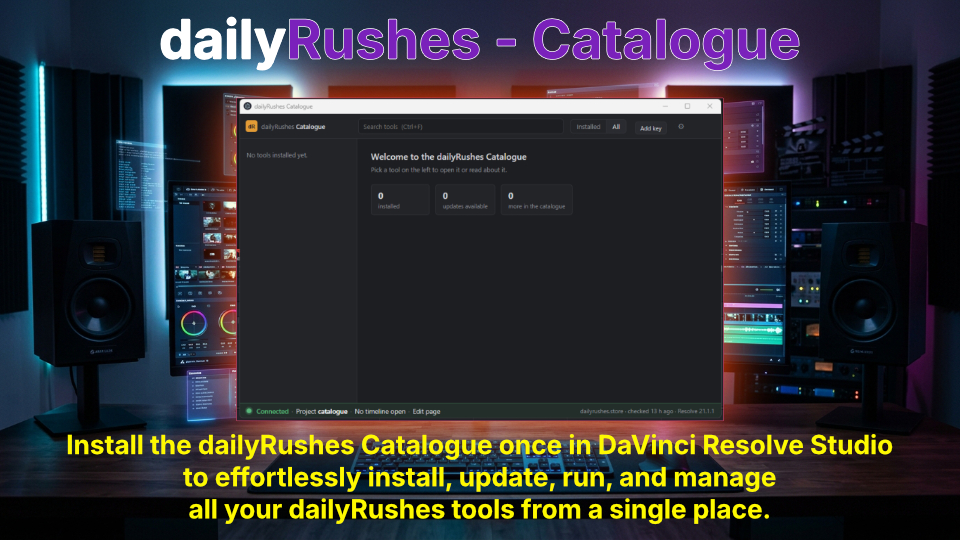
All your dailyRushes tools in one place, inside DaVinci Resolve Studio
Requirements
- DaVinci Resolve Studio (Workflow Integration plugins do not load in the free version).
- Windows 10/11 or macOS.
- An internet connection for downloading tools and updates (installed tools work offline).
Installation
- Quit DaVinci Resolve Studio.
- Unzip the download to extract the
com.dailyrushes.cataloguefolder. - Move the folder into the Resolve Workflow Integration Plugins directory for your OS:
- Windows:
C:\ProgramData\Blackmagic Design\DaVinci Resolve\Support\Workflow Integration Plugins\(Note:C:\ProgramDatais hidden; paste the path into File Explorer's address bar). - macOS:
/Library/Application Support/Blackmagic Design/DaVinci Resolve/Workflow Integration Plugins/(In Finder, press Go > Go to Folder...; create the folder if it does not exist).
- Windows:
- Verify file placement:
- Ensure
manifest.xmlis directly insidecom.dailyrushes.catalogue(not nested inside a duplicate folder). - Ensure
WorkflowIntegration.nodeis located in the top level of thecom.dailyrushes.cataloguefolder alongsidemanifest.xmlandmain.js.
- Ensure
- Launch DaVinci Resolve Studio.
How to Use
1. Opening the Catalogue
In DaVinci Resolve, navigate to: Workspace > Workflow Integrations > dailyRushes Catalogue.
2. Installing Tools
Every tool requires a key from dailyrushes.store (either free or purchased):
- Get a key: Click Get a free key (enter your email) or Buy on the tool’s page.
- Add the key: Use any of these methods inside the Catalogue:
- Click Add key at the top and paste the key.
- Press Ctrl+V (Cmd+V on Mac) anywhere in the Catalogue window.
- Drag and drop a downloaded
.drkeyfile onto the window. - Click I have a key directly on the tool’s page.
- Click Install when prompted.
3. Opening & Managing Tools
- Open tools: Click Open (for tools running inside the Catalogue), click Launch (for standalone window tools), or simply double-click the tool in the list.
- Switch windows: If a tool has its own window open, use its built-in button to return to the Catalogue (Resolve will not reopen the Catalogue from the top menu while a sub-window is active).
- Update tools: When an update is available, an Update badge appears on the tool; click Update to vX to install it.
- Remove tools: Go to the tool’s page and click Remove <tool>... (optionally tick the box to delete its saved data and settings).
Download
Enter your name and email to get the download link.